
On this page, you'll be able to:
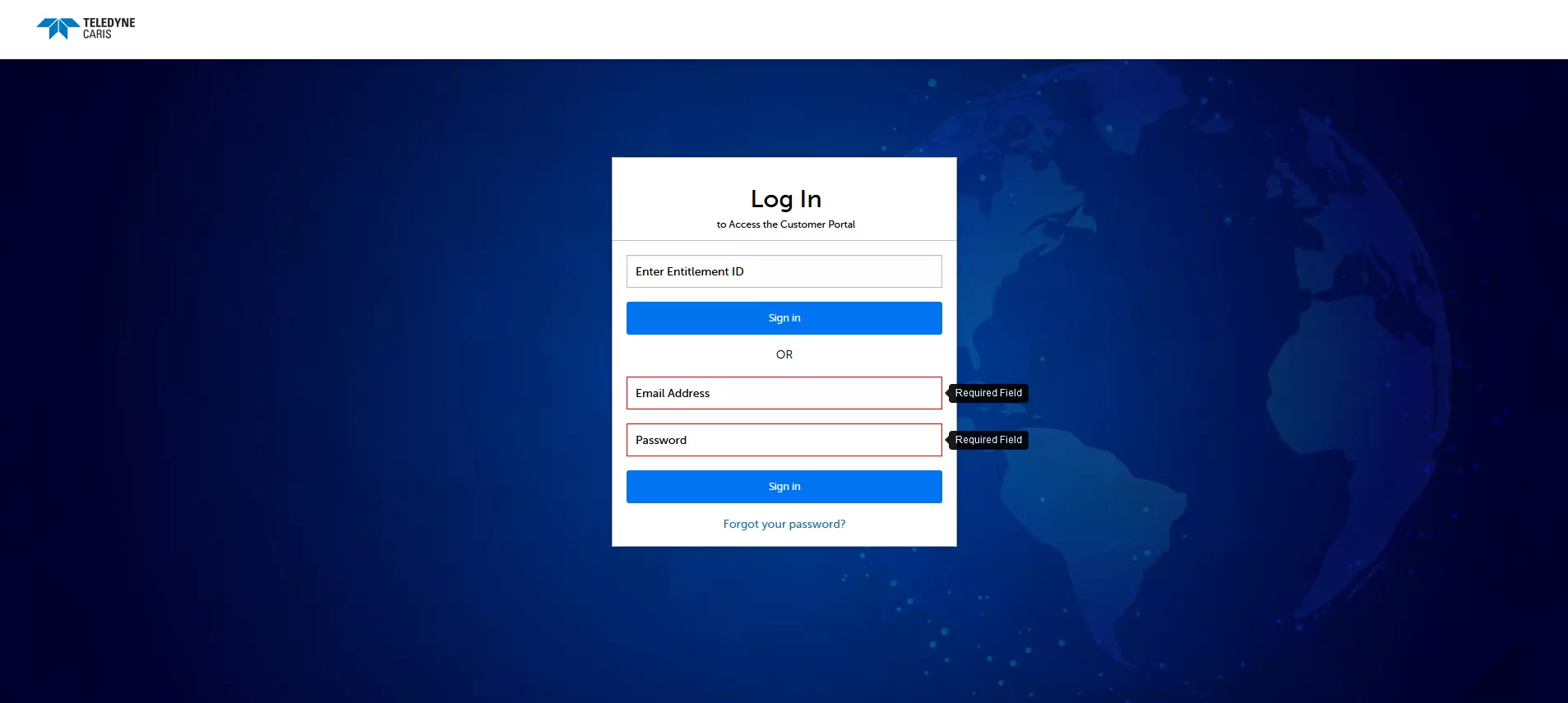
Select forgot your password, use your email address to set up a new password.
To sign-up as a new user, please use the new registration page. If you should require any assistance with registration, please contact Teledyne CARIS Customer Services at [email protected]
The License Overview tab displays all products licensed within your organization.
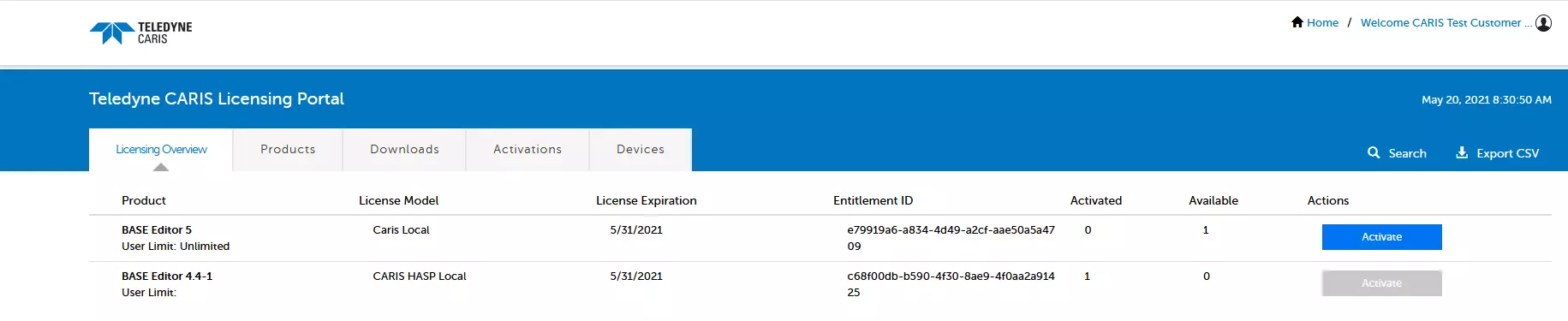
Each line item indicates Product, License Model, Expiration date, Entitlement ID and the Activation status.
User Limit
License Model
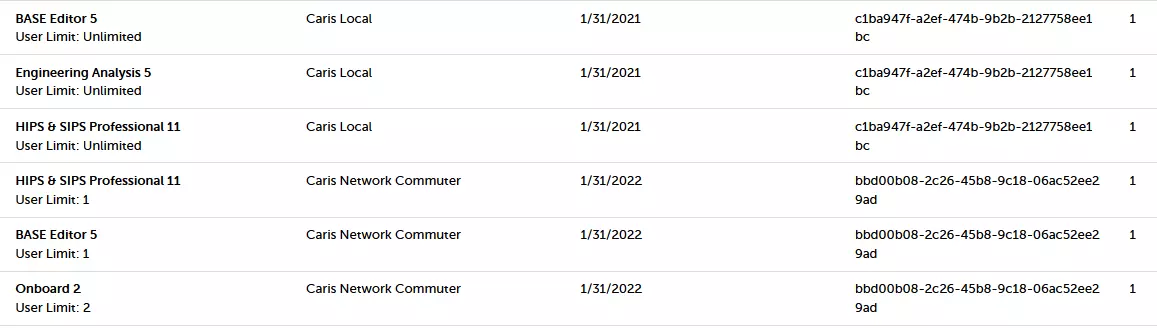
Columns may be sorted (ascending/descending) by clicking the heading titles.

The Search button allows you to refine the license selections being displayed.
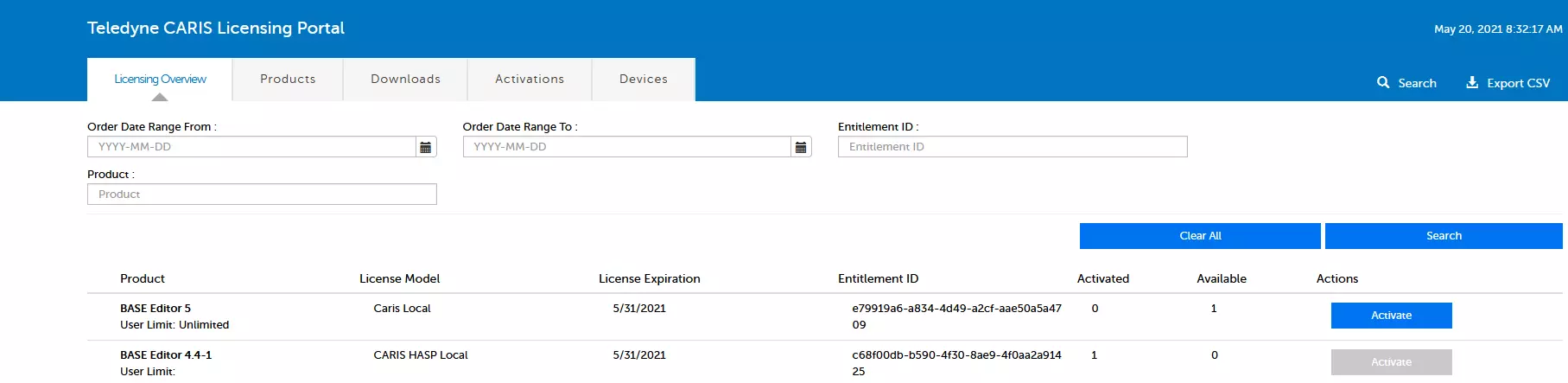
You can perform an activation for yourself or for a person within your organization for any available product. Select the Activate button to begin the process.

Fill in the contact email

If the contact is not a registered user: Insert Contact Name and Contact Company

Insert Device Name/Locking Code of the pc where the license will be installed.

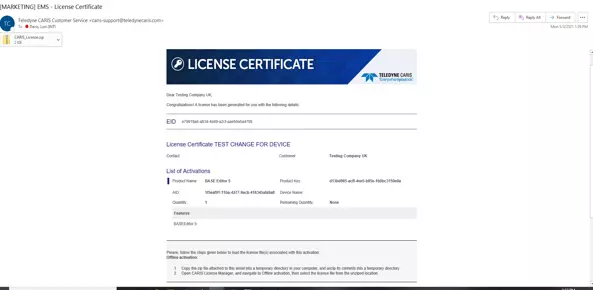
Click the Complete Activation button. This automates a License Certificate email to the Activatee, with a zip of the CARIS License and instructions for offline activation.
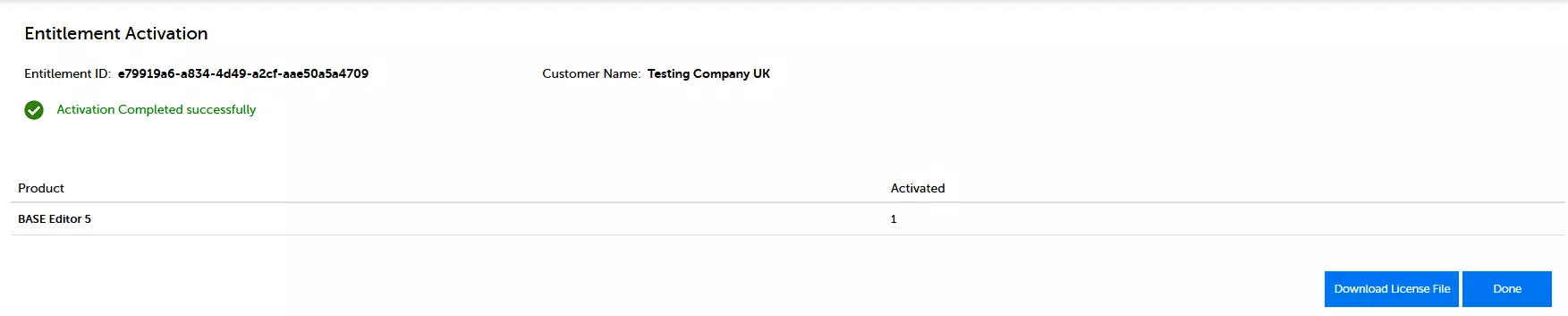
Message displayed Activation Completed successfully. Click the Done button.
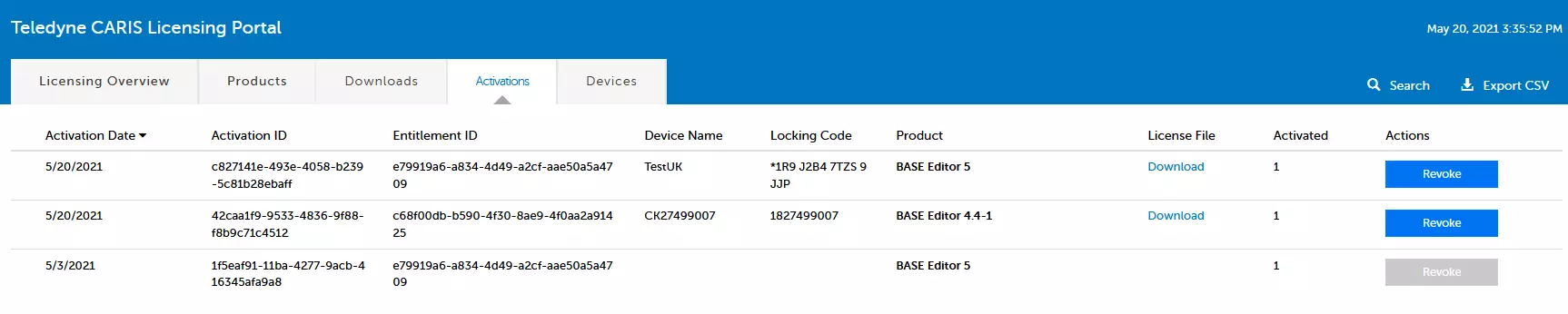
Select the revoke button to begin the process.
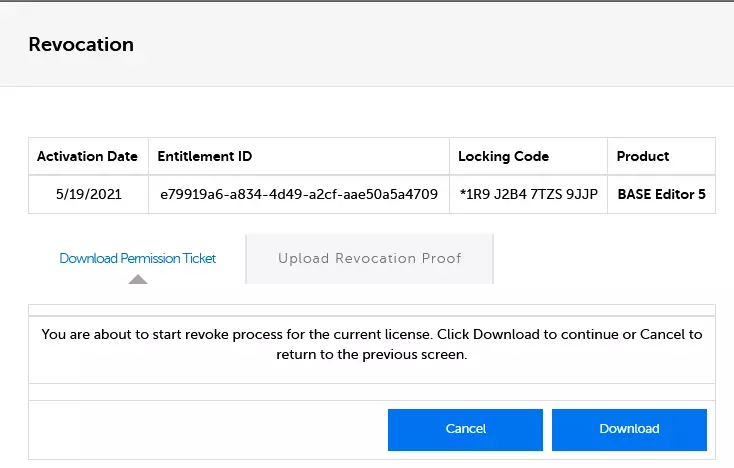
Download Permission Ticket and forward to end-user
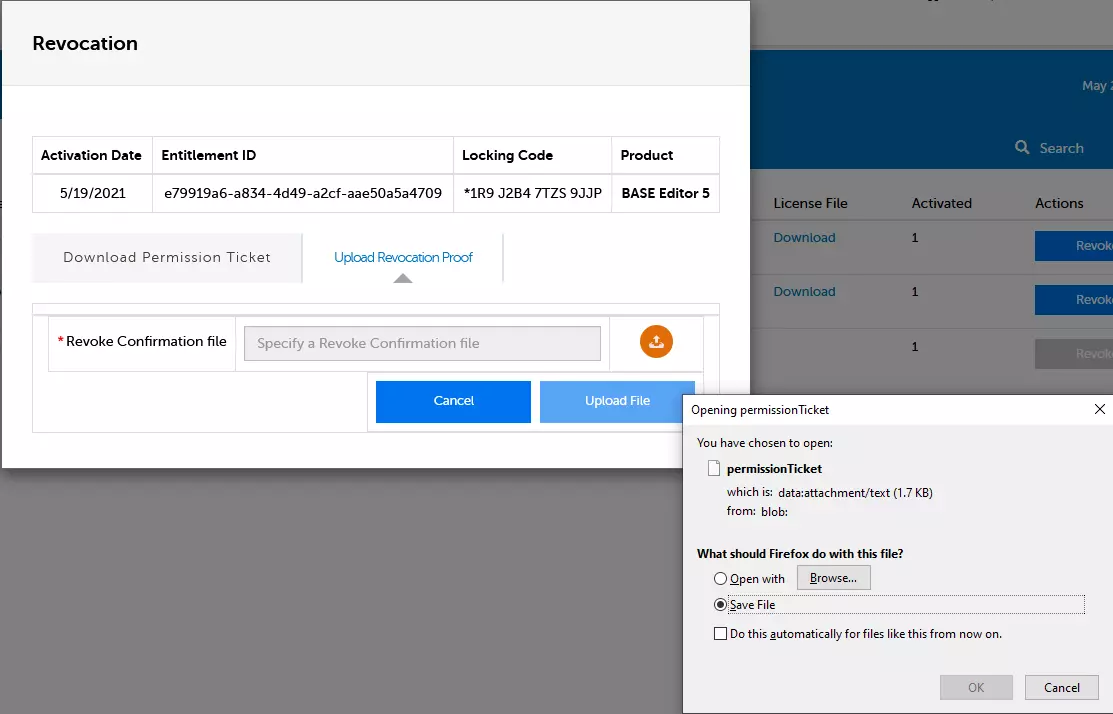
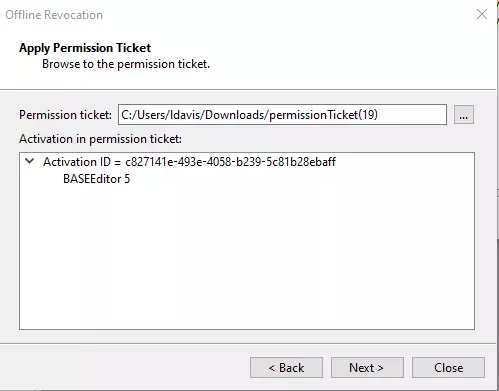
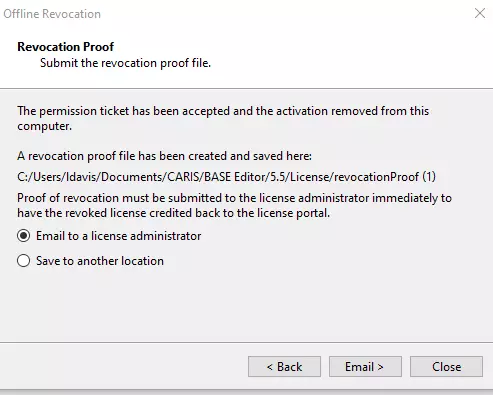
End-user performs an offline revocation through the License Manager, applies the Permission Ticket creating the revocation proof file that can be emailed to the license administrator or saved to be forwarded in an email.
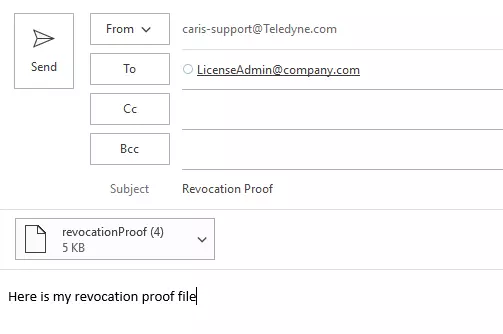
Upload the proof file once received from end-user
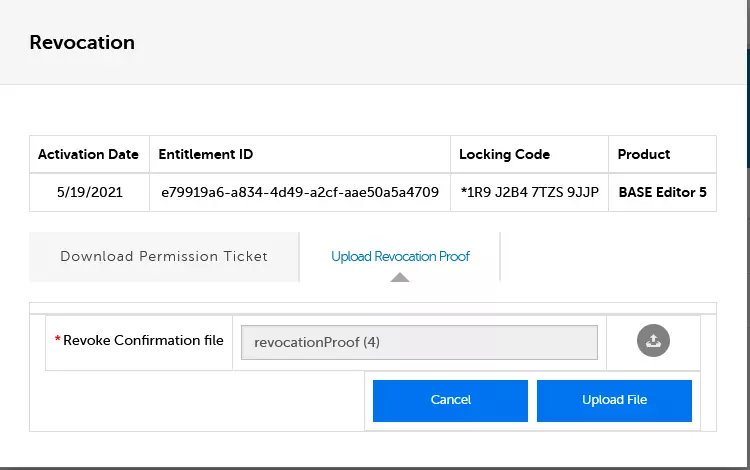
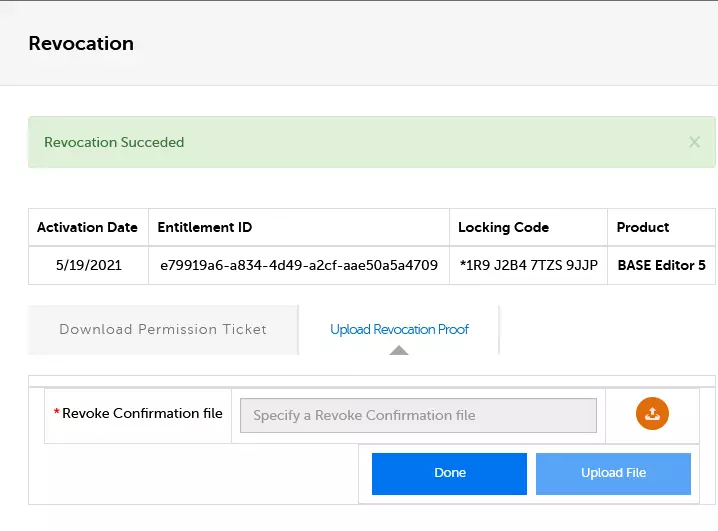
Revocation Succeeded verifies completion, the product is now available for activation
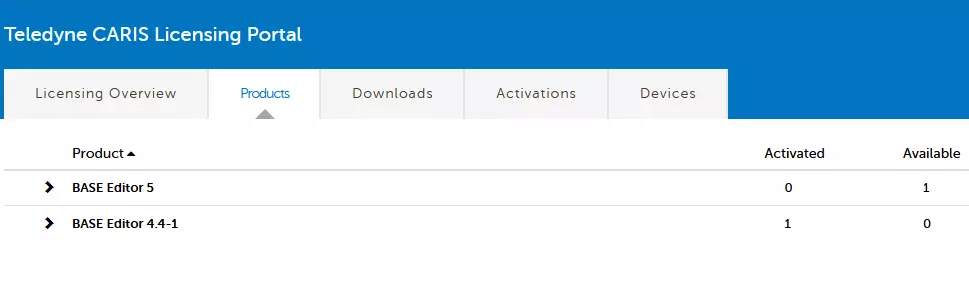
You can view all products owned by your organization, and the Entitlements associated with each product.
The Entitlement ID’s contains the subscription end dates and the activation status of each record.
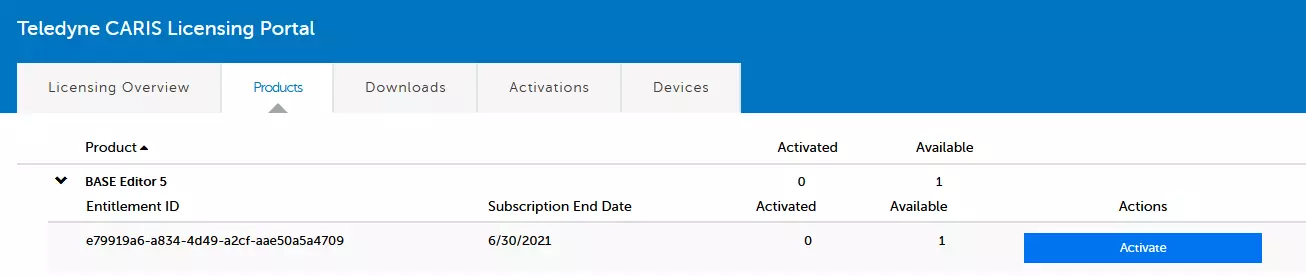
**You can perform Online Activation and Revocation from this screen
You will find the latest product releases your organization are eligible to receive, along with installation guides and utilities that are associated with these products.

Select the more info icon, to view the download type and a brief description.

This screen contains all transactions that have occurred on your organizations Entitlements.
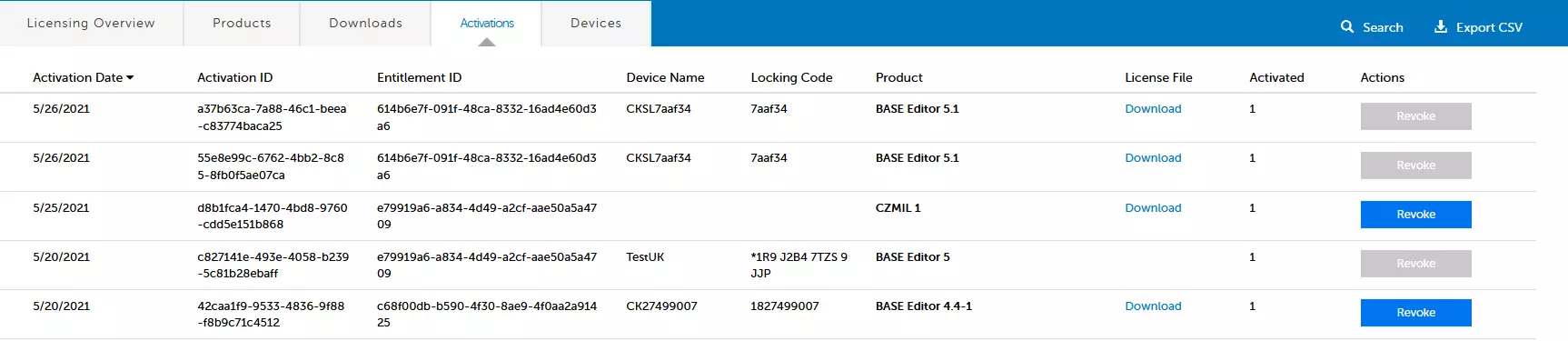
You can view the Device Name, Locking Code and download the latest License File from this location and view the status of each activation. EID users can perform Online Activation and Revocation from this screen.
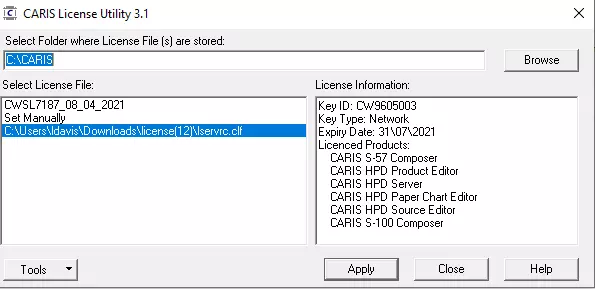
Those clients utilizing HASP Keys, please note: Device Name is the key ID, the Locking Code is the HASP ID, which can be found in the License Utility under Key information.
View all Device Names and locking codes associated with active Entitlements.
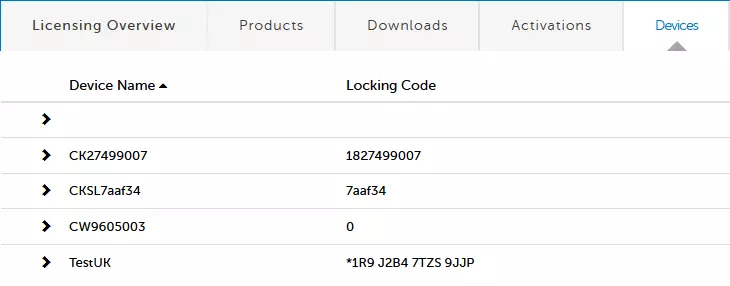
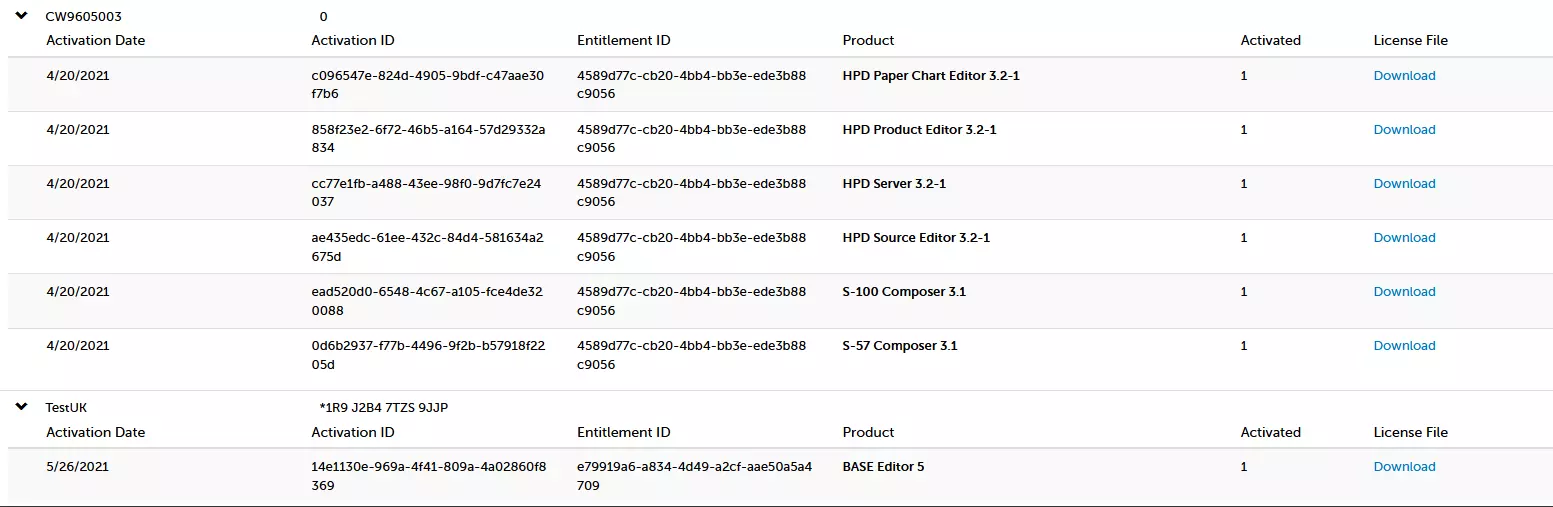
Click the carat (>) to expand the license details to see the associated Entitlements and download the license file.
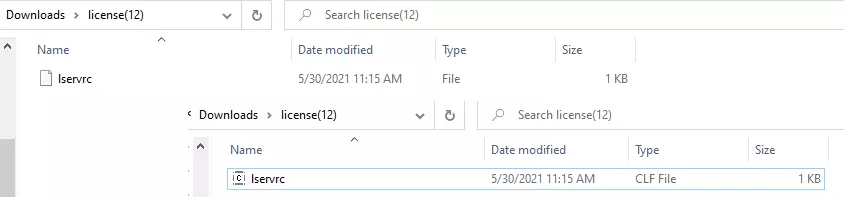
When downloading a license file, you will need to extract the zip file:
EID Licenses

HASP Key
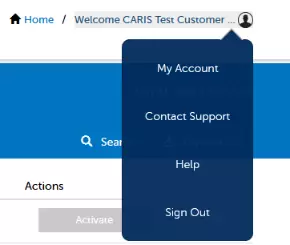
From the home page select the emoji to find information on My Account, Contact Support and Help.
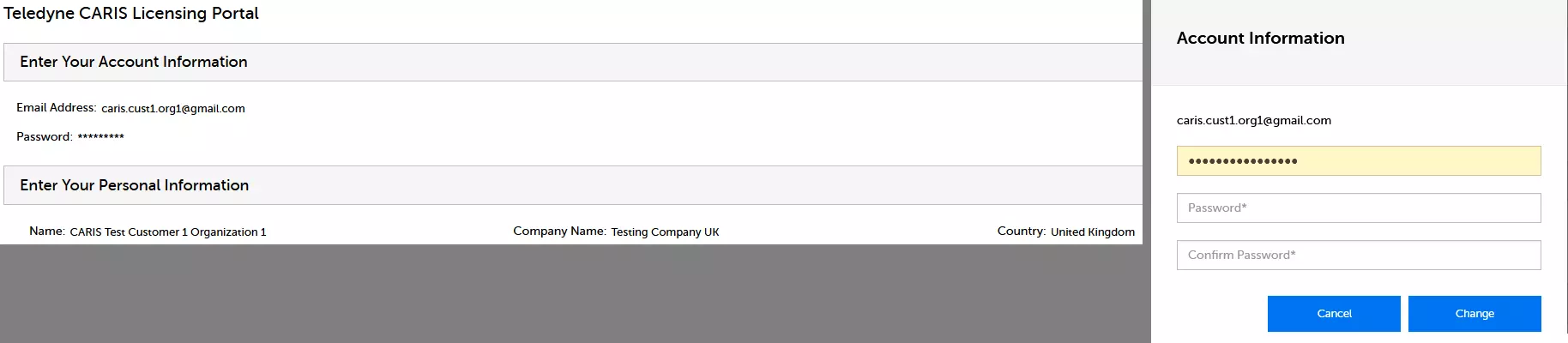
To view your account and personal information and update your password. If other updates are required for this account, you will need to contact Customer Services to make these changes.
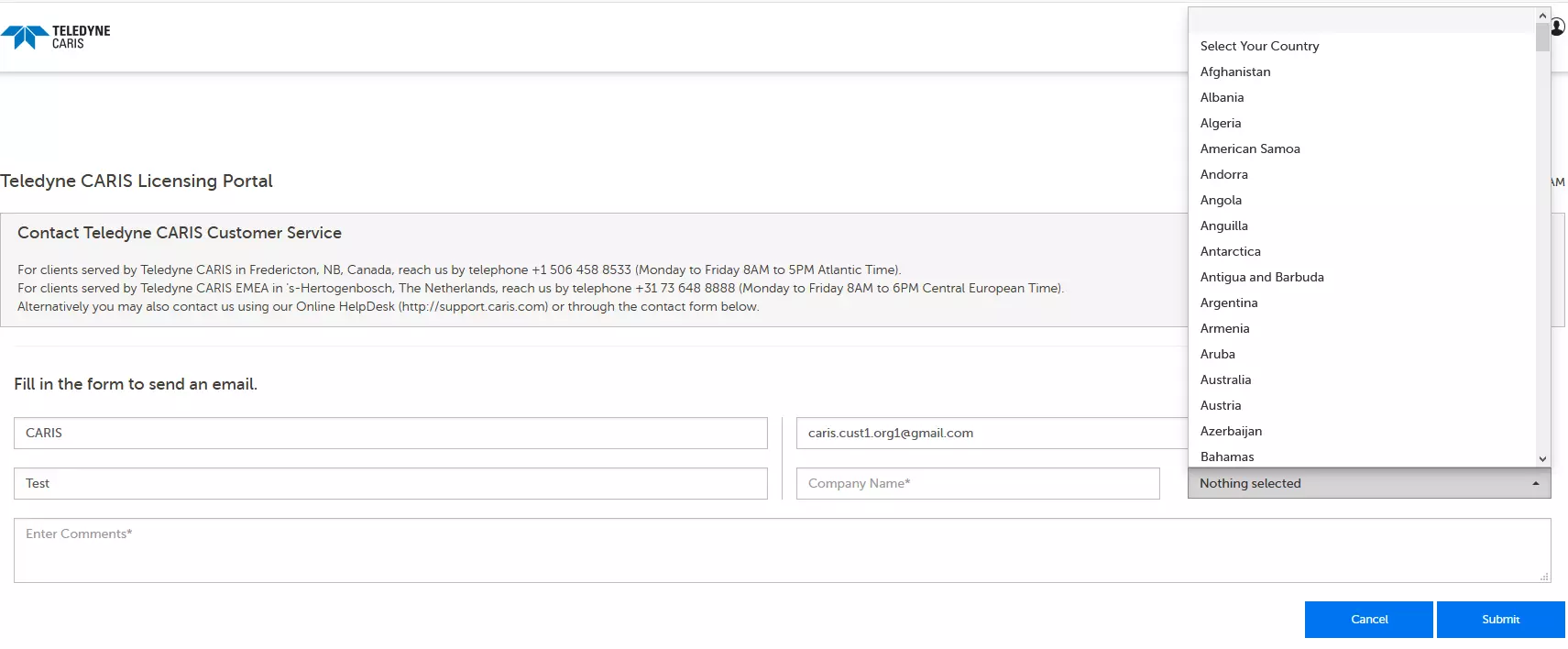
Send an email to support through an online form.
Opens the Licensing FAQ page:
Teledyne CARIS' Privacy Policy is available here.
If you have questions or comments regarding Online Customer Services, please contact [email protected]

