
27 May 2026
Follow the steps below to purchase Teledyne CARIS software online. For the best experience, we recommend logging in or creating a new account before you begin.
To get started, click Login at the top of the page. If you are new to Teledyne CARIS, you can register for a free account in just a few minutes. Your account also gives you access to license management, downloads, and support.
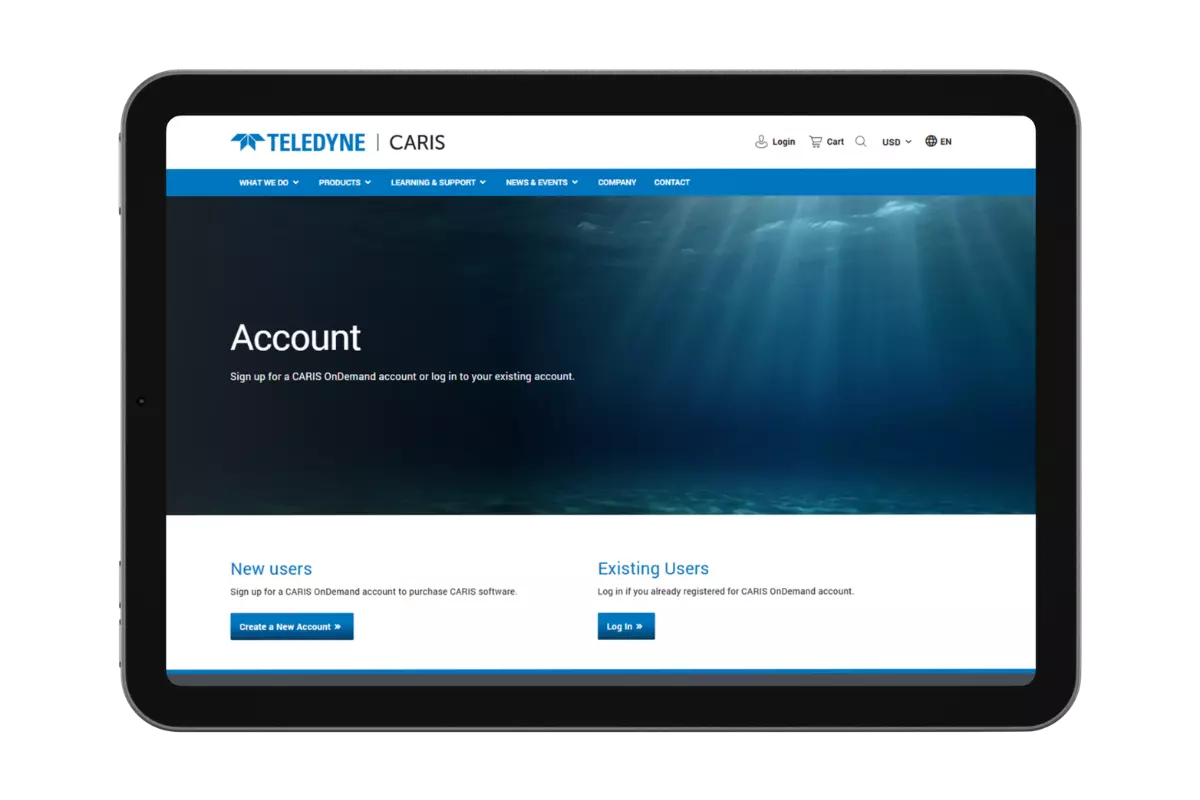
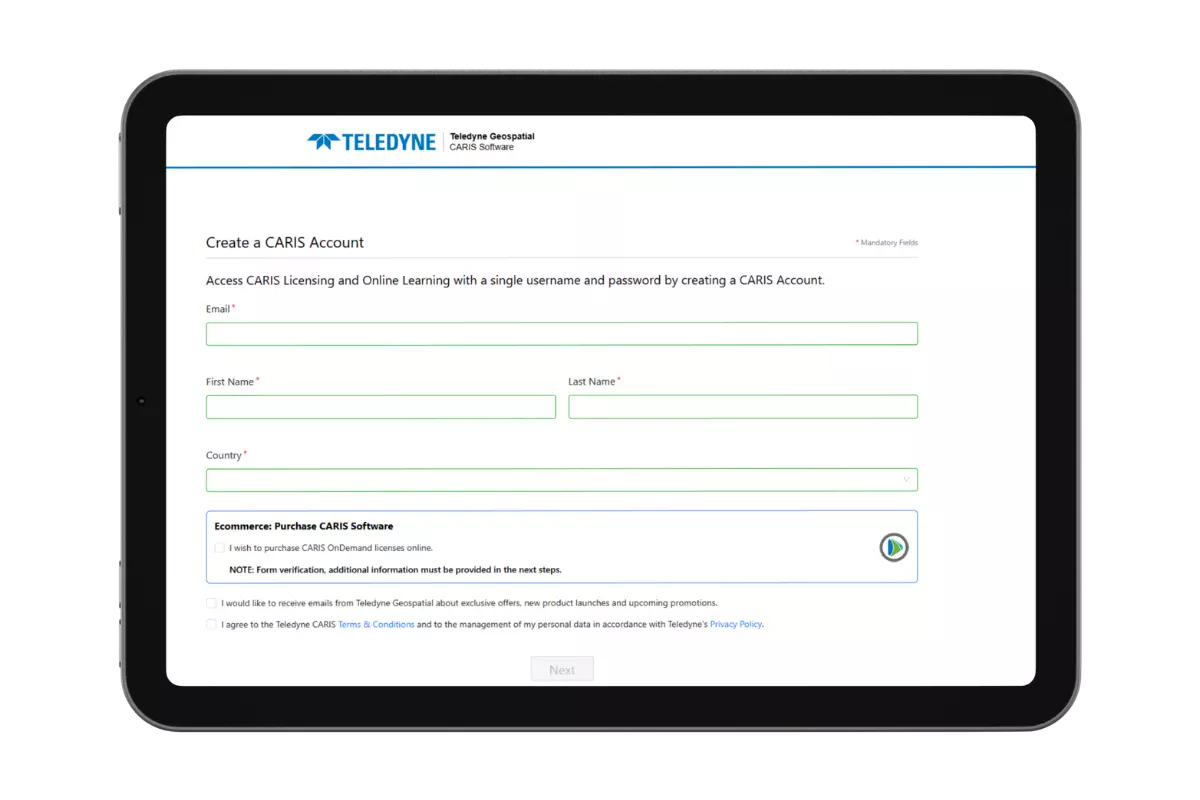
New account registrations require authentication which can take up to 24 hours during business hours, approvals over the weekend holidays may take longer for approval. Once your account has been authenticated you will be able to log in and purchase software.
Tech Tip. When creating an account be sure to create your account with the billing address associated with your credit card.
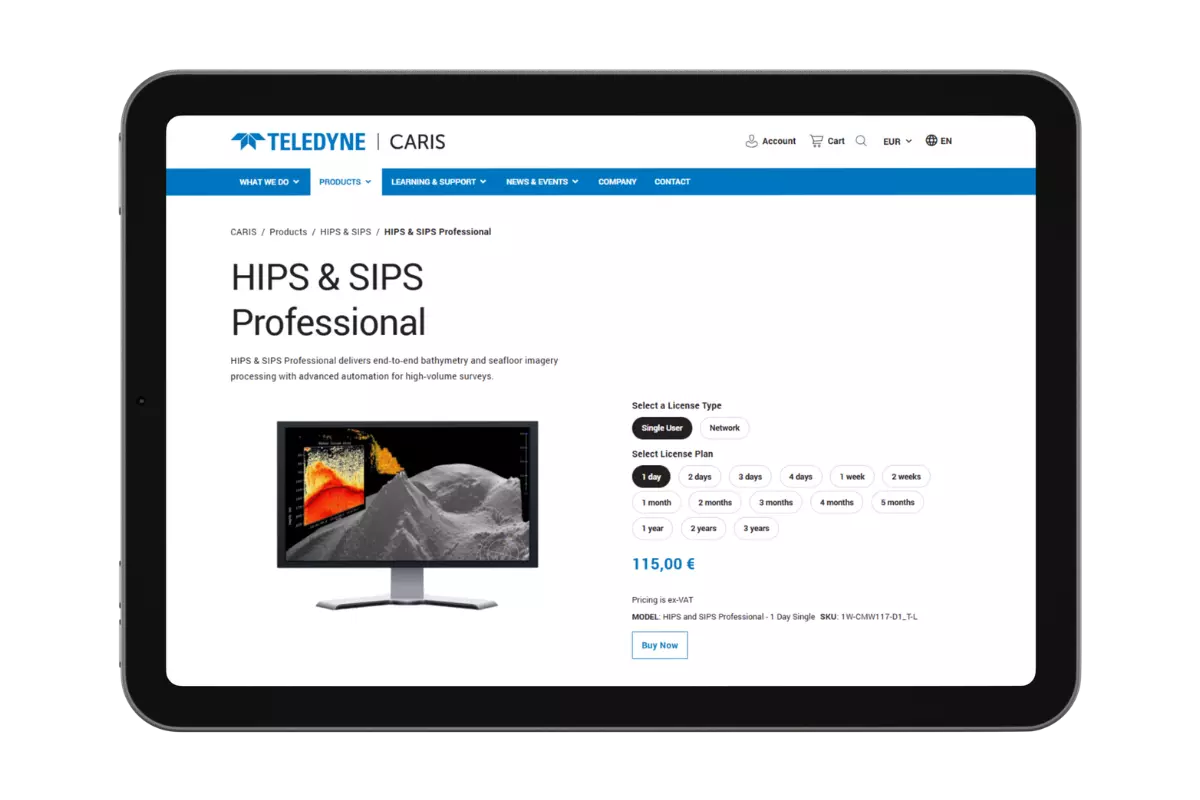
Once logged in, visit the ‘Products’ section to explore the full software catalogue. Each product page includes a feature overview and licence options to help you find the right solution. When you are ready, click ‘Buy now’ on the product page to proceed directly to the checkout cart.
To purchase multiple products, click ‘Back to shopping’ within the cart and repeat this step for each additional product.
Once you have added all the products you need, review your cart. You can edit quantities directly within the cart before moving on. When everything looks correct, click ‘Checkout now’ to proceed.
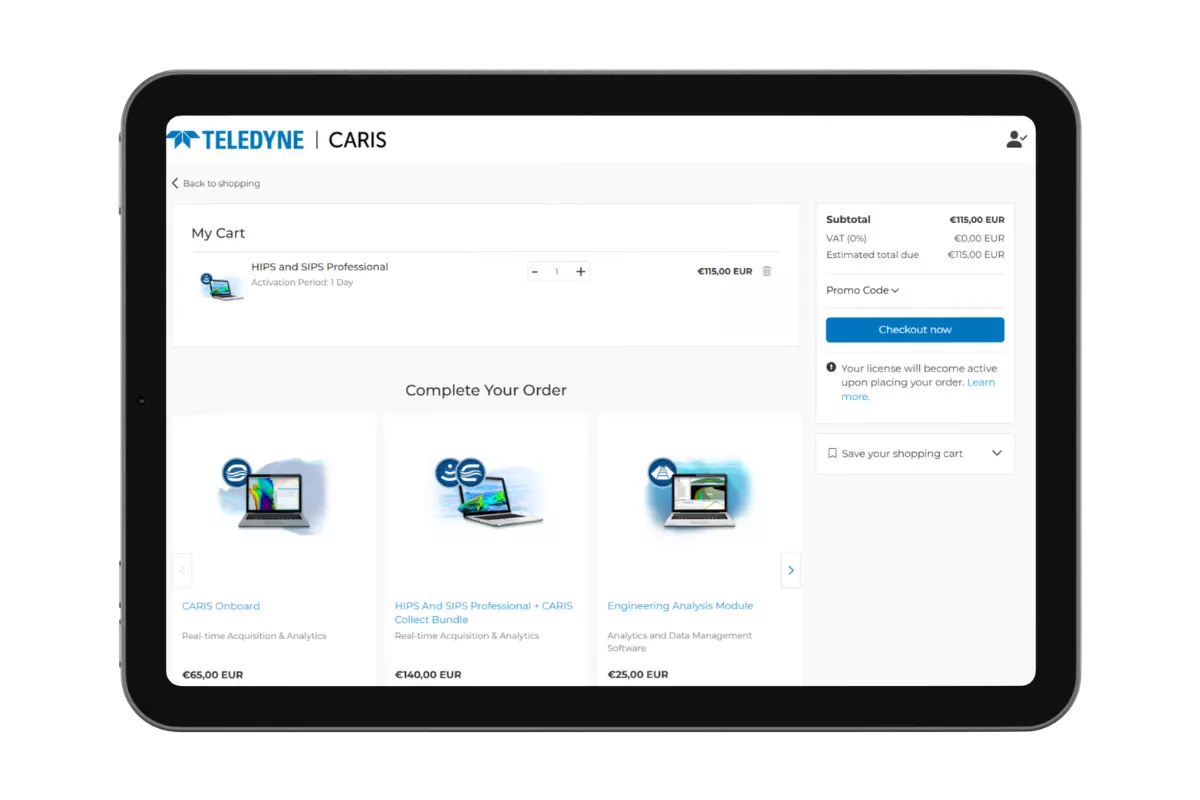
Your billing details will be automatically populated from the information you supplied when creating your account.
Please note: Billing details cannot be changed during the cart checkout process. If your details need updating, please contact us before checking out.
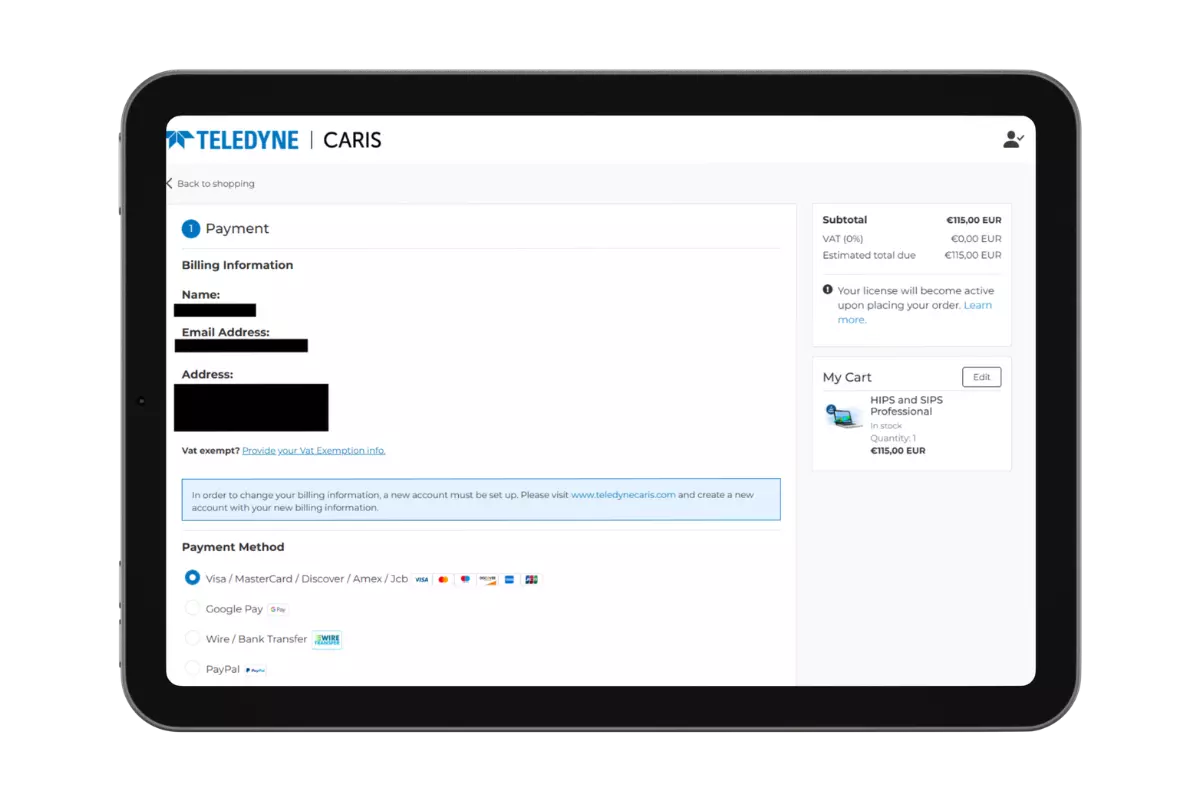
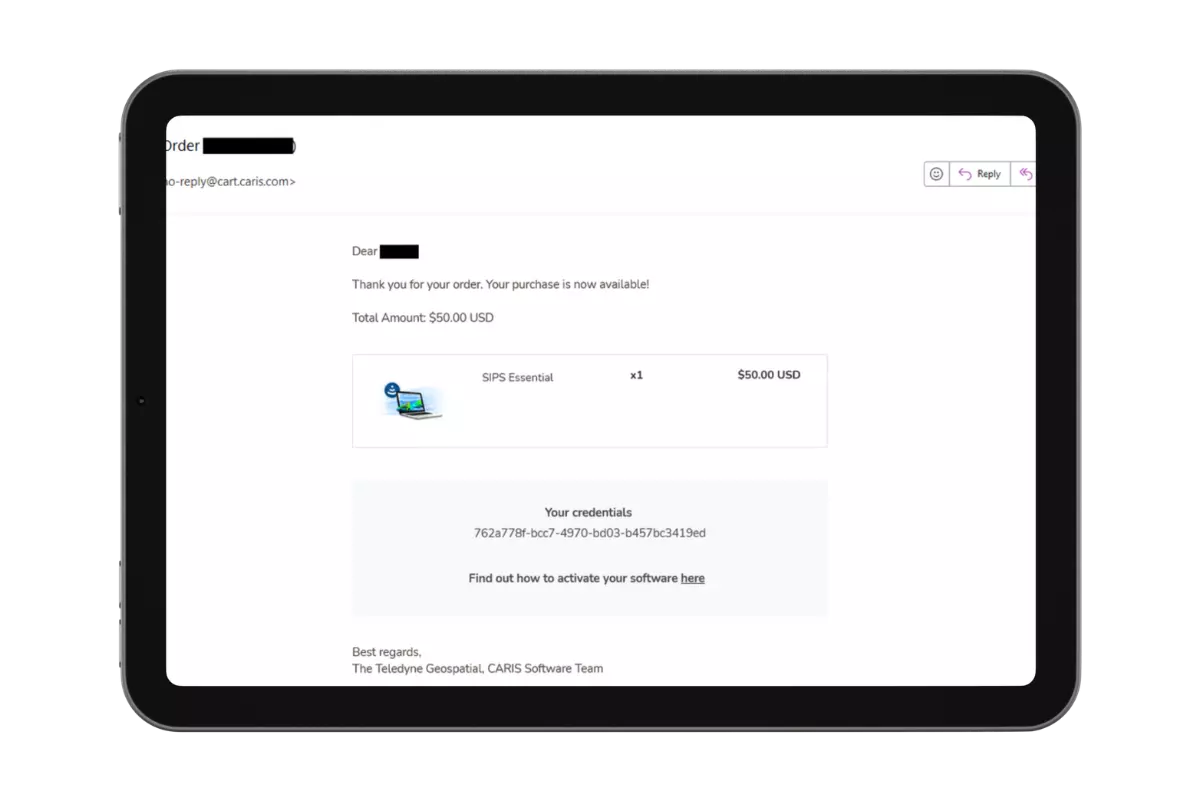
Select your payment method and confirm your order. Once payment has been processed, you will receive two confirmation emails.
Our team is here to assist. Visit the Contact page (teledynecaris.com/en/contact) to reach the sales team directly, or raise a ticket via the Service Desk (teledynecaris.com/en/learning-support/service-desk) for technical queries after purchase.

